
Xilisoft Audio Converter Tutorial
| Xilisoft Audio Converter Tutorial - 2 | Referring  |
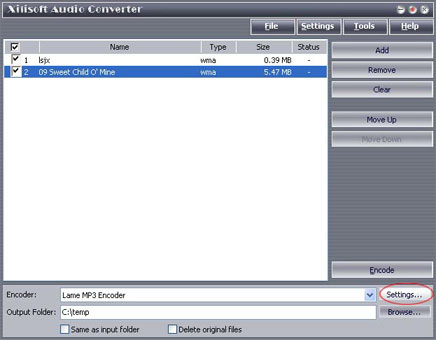
| 4. Select target file format that you want to output. Highlight your loaded file first and then select output format from "En-coder" combo-box. For example, if you want to convert original audio file to MP3 format, you should select "Lame MP3 En-coder". | |
 |
|
| 5. To set the folder that you want to save your target file, you may select the Output folder by clicking "Browse..." button or directly enter a path in the "Destination" box. "C:\temp" is setted as the default destination folder. | |
 |
|
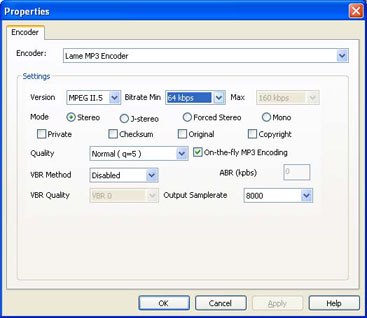
| 6. You can adjust some special setting for your conversion by clicking "Settings" behind the "Encoder" combo-box, such as "Bit Rate" and "Sample Rate". | |
 |
|
| 7. As the last step, just click "Encode" to start your conversion.You can see "OK" under the "Status" column which means you got a successful conversion. What to do now? Just enjoy your music. Our software keeps the quality as good as the original files. | |
  Free Trial Free Trial Price: $23 Price: $23 |
|


