
Current Page: Xilisoft > Buy Video Converter Gads 
Xilisoft Video Converter
Xilisoft Video Converter is powerful but easy-to-use, which can convert almost all popular video and audio files. With this video conversion software, you can watch your favorite movie or listen to the music on your iPod or other multimedia devices freely. Besides, it is used for personal video maker. the protected DVD and video files cannot be encoded.

Functions:
Supporting:
- Support video conversion between: AVI, MPEG, MP4, WMV, 3GP, VCD, H.264/MPEG-4 AVC, H.264/PSP AVC Video, MOV, RM, ASF, FLV, SWF, etc.
- Support audio conversion between: MP2, MP3, AC3, RA, M4A, OGG, AAC.
- Convert video to audio files: mp4 to mp3, avi to wma, mp4 to wma, etc
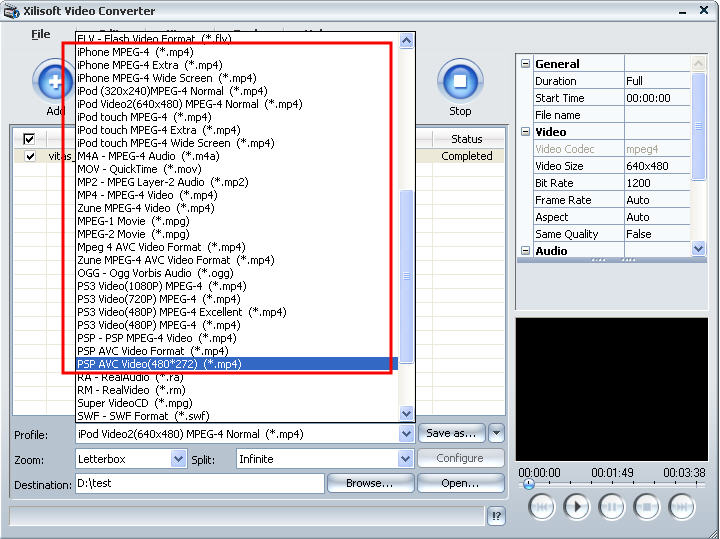
- Preset profiles for: iPod, iPhone, Apple TV, PSP, Zune, MP4 Player, BlackBerry etc
- Support H.264/PSP AVC Video and H.264/MPEG-4 AVC encoding/decoding
- High conversion speed and excellent output quality
- Support converting any clip or segment of the video
- Zoom and split functions

Price: $39.00 

-
Overview
-
Reference
-
Related Products
-
Why Choose
More Features
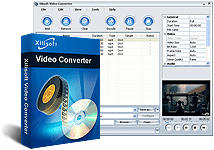
- Batch conversion – with this function, you can convert several files at one time.
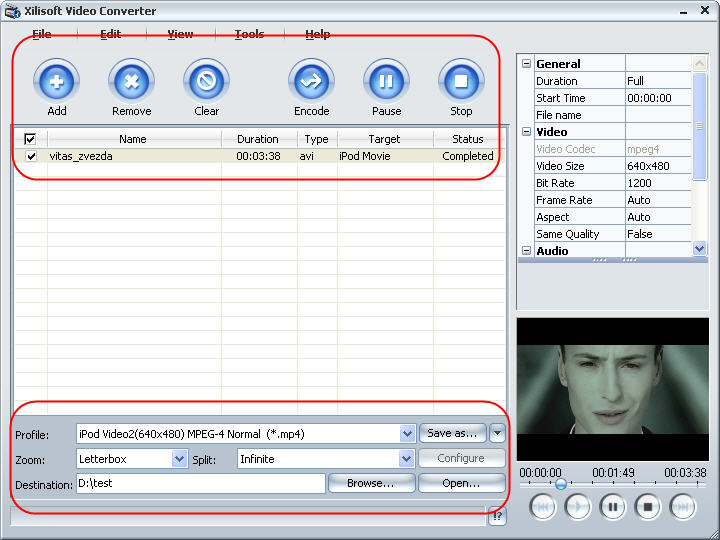
- Customized settings - You could keep the default settings or set parameters of the video and audio codec by yourself. You can specify the output file name.
- The Video Converter allows preview; you can examine the quality of videos
- When converting files, you can pause, stop and continue at any moment;
Screenshot
 |
 |
 |
System Requiement
- OS Supported: Windows NT4/2000/2003/XP and Windows Vista, Windows 7;
- Fully support Intel® Pentium D Dual-Core Processor and AMD Athlon™ 64 X 2 Dual-Core Processor;
- Hardware: Intel Pentium II 350MHz or above, or any Athlon; 64 MB RAM or above.
| Vedio formats |
|
||||||||||||||||||||||||||||||||||||||||||||||||||||
| Audio formats |
|
||||||||||||||||||||||||||||||||||||||||||||||||||||
| Digital devices |
|
||||||||||||||||||||||||||||||||||||||||||||||||||||
| Video Codec |
|
||||||||||||||||||||||||||||||||||||||||||||||||||||
| Audio Codec |
|
 |
Xilisoft MP4 Converter |
| Convert other video formats such as avi, wmv, mpeg to MP4, and also convert MP4 to MP3, AAC, M4A, etc. Support iPod, iPhone, Archos, iRiver, Creative Zen Version, etc. | |
| Download Buy |
 |
Xilisoft iPod Video Converter |
| As excellent video and audio to iPod converter, Xilisoft iPod Video Converter can put videos/music on iPod freely with excellent conversion speed. Especially, it supports CD ripping. | |
| Download Buy
|
 |
Xilisoft PSP Video Converter |
| How to put video files on PSP easily and swiftly? Xilisoft PSP Video Converter can perfectly solve this problem by conversion. And a built-in PSP Video Manager can transfer movies to your PSP. | |
| Download Buy |
 |
Xilisoft Zune Video Converter |
| As an excellent video to Zune Converter, Xilisoft Zune Video Converter can convert movie files for Zune, including AVI, MPEG, DivX, MOV, VOB, etc. Additionally, it can convert most popular file formats to Zune MP3&WMA. | |
| Download Buy
|
 |
Xilisoft Audio Converter |
| Xilisoft Audio Converter can convert audios among MP3, WMA, AAC, OGG, WAV, etc. Additionally, it supports extracting audio from videos, e.g.: converting MP4 to MP3, mpeg to mp3. | |
| Download Buy |
Awards
 |
 |
 |
 |
Service
 FAQ FAQ |
a) I am really a beginner to this kind of video conversion tools. It is difficult for me to understand the way to use your program. Is it possible to offer me a simple way? A: The accessional Video Converter Wizard is quite easy and convenient. You can run it by the shortcut for Wizard from desktop after installation. In each step, it has clear description about what to do, guiding the conversion job. And also, our program can be run in normal mode and Wizard mode simultaneously, performing different conversion jobs. |
| b) After the conversion is done, I found that the output file is in such a small resolution. All what I used are default settings. I should be able to adjust resolution. But I can not find such a resolution item on the right panel. Why? And what should I modify? A: In our program, resolution is called "Video Size". You can find this item on the right. Different output format may have different default values. For some of them, the default one would be "Auto". You can select a value which is offered in the drop-list or simply enter a proper number you want directly into. |
|
| c) Where can I found the output files after the conversion? A: After our software shows "complete" for the conversion job, please click "Open" button which can be found at the bottom of the main interface. You will reach the destination folder directly, from where you will find the output files for your conversion job. Generally, the default destination folder for our program is "C:Temp". |
|
| More | |
| Tutorial |
|
| Here is the guide to how to convert by Xilisoft Video Converter step by step. | |
| Contact |
|
| sales@xilisoft.com support@xilisoft.com | |