
Xilisoft DVD Creator for Mac Tutorial
Xilisoft DVD Creator for Mac allows you to convert files in AVI, MPEG, VOB, DAT, M2V, MPG as well as many other formats to DVD movies and burn them onto DVDs.
To be clear, we divide this tutorial into six parts:
- Getting Started
- Edit DVD Subtitle
- Edit DVD Audio Track
- Clip Video Segment
- Edit Video Effects
- More Applied Functions
Getting Started
Step 1: Install and run the Xilisoft DVD Creator for Mac
After installation, run the software. You can see the main interface as below.
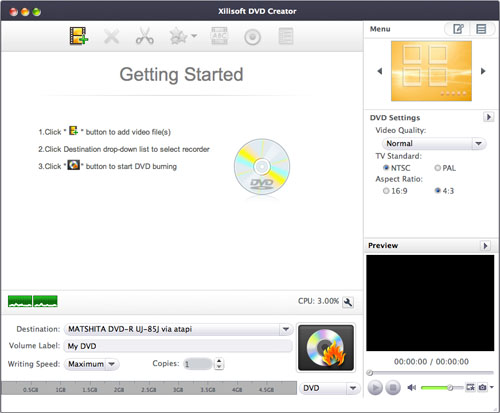
Step 2: Add files
Click the "Add Video File(s)..." button on the toolbar, select one or more files in the "Add Video File(s)" dialog box that appears, and then click "Open" to load the selected files into the file list of the program.
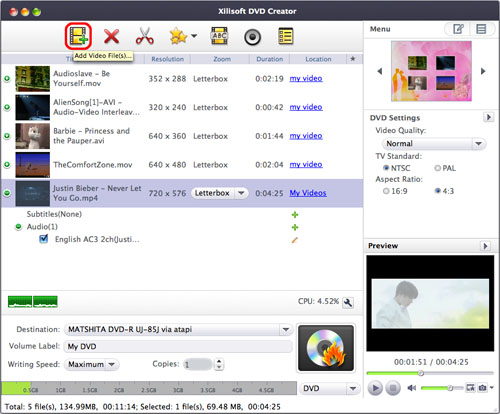
Tip: You can choose "File > Add Video File(s)..." or "File > Add Video Folder..." from the main menu to load video(s).
Step 3: Add subtitles and audio tracks
After loading a video file, its subtitle and audio track information will be listed under the file node in the file list.
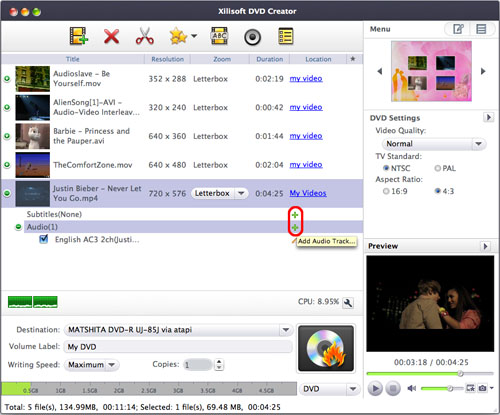
To add subtitles, click on the "+" sign ("Add Subtitles...") on the right of the subtitle item to load the required subtitle file(s) from your computer. To edit the added subtitle file(s), please refer to Edit DVD subtitle for more info.
To add audio tracks, click on the "+" sign ("Add Audio Track...") on the right of the audio track item to load the required audio track(s) from your computer. To edit the added audio track(s), please refer to Edit DVD audio for more info.
Step 4: Create a DVD menu
Click on the "Templates" button from the "Menu" panel in the top right-hand window and choose a template from the list to quickly create a simple DVD menu.
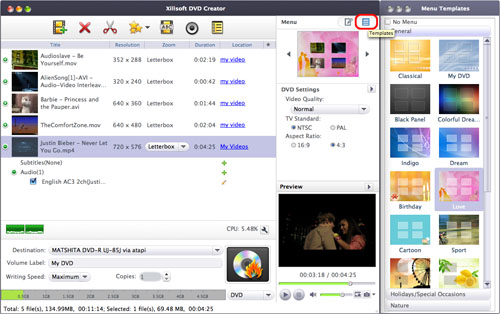
To edit the DVD menu, please refer to Edit DVD menu for more info.
Tip: You can adjust DVD settings (e.g. "Video Quality", "TV Standard", "Aspect Ratio") in the right settings panel. Click "Edit" button to open the "Settings" window for more settings.
Step 5: Set output target
Click the "Destination" drop-down button from the main window, and choose DVD disc, DVD folder, or ISO image file from the drop-down list as the output target.
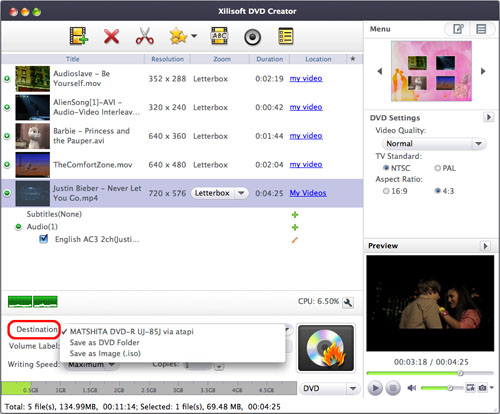
Tip: If you set the output target as DVD folder or ISO image file, you can change the target path to save the output file.
Step 6: Set DVD name
Enter a name in the "Volume Label" field from the main window to name the output DVD disc, DVD folder, or ISO image file.
Tip: If you set the output target as DVD folder or ISO image file, you can change the target path to save the output file.
Step 7: Start burning
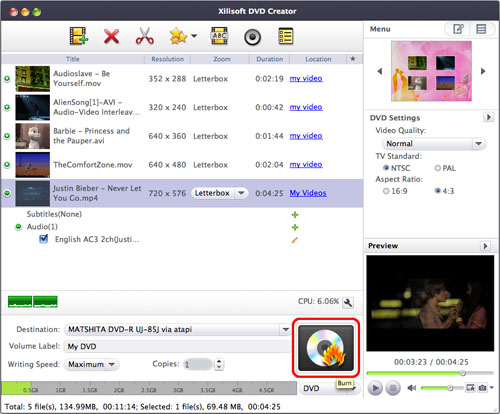
Choose the write speed and the number of copies required, and then click "Burn" to start the burning process.
Edit DVD Subtitle
After adding a subtitle file, you can edit it to your liking.
- Select a file from the file list, click the "Subtitles" button on the toolbar to open the "Edit Subtitle" window.

Tips:
(1) You can also open the "Edit Subtitle" window by clicking the "Edit Subtitles" button on the right of the selected subtitle item in the file list.
(2) You can click on the "+" sign (Add Subtitles...) to load subtitle file(s) from your computer in the "Edit Subtitles" window. The loaded subtitle files will be displayed in the subtitle list below the "Add Subtitles..." button.
(3) You can adjust the subtitle order with the up and down arrow keys above the subtitle list. The first one in the list will be set as default. - Choose the subtitle you want to edit from the subtitle list and select the corresponding language for the subtitle from the "Subtitle Language" drop-down list.
- Click and drag the "Vertical Position" control slider to set the vertical position of the selected subtitle. You can check the changes in real-time using the player on the left. Use this real-time preview function to get the best subtitle vertical position.
Tip: You can also enter a value in the vertical position textbox directly or adjust the vertical position value with the up and down arrow keys. - Click on the "T" sign ("Font Style…") to set the font style and size in the font setting dialog box that opens.
- If you notice a delay between the subtitle and the video, click and drag the "Subtitle Delay" control slider to make the subtitle match the video.
Tips:
(1) You can also enter a value in the subtitle delay textbox directly or adjust the "Subtitle Delay" time with the up and down arrow keys.
(2) If the subtitle is ahead of the video, then adjust the delay time forward; otherwise adjust the delay time backward. - After the above operations, click "Apply" then "Close" to return to the main window.
Tip: Click the "Settings" drop-down button, and choose "Restore Defaults", "Save As Defaults" or "Restore Factory Defaults" as necessary. Select the "Apply to All Items" option to apply the above settings to all videos.
Edit DVD Audio Track
DVD audio track editing is supported.
- Click "Audio" on the toolbar to open the "Edit Audio Track" window, and then select the audio track you want to edit in the audio track list.

Tips:
(1) You can also open the "Edit Audio Track" window by clicking on the pencil icon ("Edit Audio Track") next to the selected audio track item in the file list.
(2) You can click "Add Audio Track" to load the required audio track from your computer in the "Edit Audio Track" window. The loaded audio track will be displayed in the audio track list below the "Add Audio Track" button.
(3) You can adjust the audio track order with the up and down arrow keys above the audio track list. The first audio track will be set as default. - Click and drag the "Volume" control slider to adjust the volume of the selected audio track. You can check the changes of volume level adjustment in real-time using the player on the left. This real-time preview function will help you get the volume level you require.
Tip: You can also enter a value in the volume textbox directly or adjust the volume value with the up and down arrow keys. - If you notice a delay between the audio track and the video, click and drag the "Audio Latency" control slider to make the audio track match the video.
Tips:
(1) You can also enter a value in the "Audio Latency" textbox directly or adjust the delay value with the up and down arrow keys.
(2) If the audio track is ahead of the video, adjust the delay time forward; otherwise adjust the delay time backward. - Click the "Bit Rate" drop-down button to select a bit rate.
- Click the "Channels" drop-down button to choose the channels you want.
- After the above operations, click "Apply" then "Close" to return to the main window.
Tip: Click "Restore Defaults" to restore the default settings.
Clip Video Segment
This feature allows you to clip the segments you like from a video.
- Select a video file in the file list; click the "Clip" button on the toolbar to open the "Clip" window.
- Click "Play" to play the selected file.
- Click "Set Start Point" and "Set End Point" to set the start and the end point respectively for the video segment you want to clip.
- Click "New Clip" and repeat Step 3 to get a new segment.
Tip: You can drag the slider to adjust the positions of the "Start" and "End" points. - Select a segment from the segment list and click "Delete Clip" to delete it. To change the order of a segment in the list, select the segment and click "Move Up" or "Move Down".
- After the above operations, click "Apply" and "Close" to return to the main window. A new video with the applied changes will be displayed in the file list replacing the original video.
Edit Video Effects
Use these video effect editing tools to help you crop the video frame size, edit video effects, and add watermarks.
Add Effects
Select the file you want to edit in the file list, click "Effect" on the toolbar to open the "Effect" window, and then click the "Effect" tab to open the effect settings panel.

Tick one or more effects in the effects list and check these effects in real-time in the right preview window. Click "Move Up" and "Move Down" buttons to adjust the order of the effects.
Tips:- Click "Settings" at the bottom of the panel and select "Restore Defaults", "Save As Defaults" or "Restore Factory Defaults" as necessary. Select the "Apply to All Items" option to apply current effect settings to all the videos in the file list.
- Uncheck "Effect" checkbox on the left of the window to cancel adding the selected effects.
Crop Video Size
Select the file you want to crop in the file list, click "Effect" on the toolbar to open the "Effect" window, and then click the "Crop" tab to open the crop settings panel.

- Set Crop Area Size: adjust the height and width of the crop area in the corresponding textboxes.
- Set Position of Crop Area: enter the values of "Left Margin" and "Top Margin" respectively in the corresponding textboxes to adjust the position of crop area.
- Click "Restore Defaults" button to restore all the crop settings to defaults.
- Drag and drop to adjust crop area: drag the central and surrounding handles in the preview window on the right to move and adjust the crop area.
- Uncheck the "Crop" checkbox on the left to cancel video cropping.
Create Video Watermarks
Select the file you want to edit from the file list, click "Effect" on the toolbar to open the "Effect" window, and then click the "Watermark" tab to open the watermark settings panel.
- Add text watermark
1. Click "Add Text Watermark" near the top of the panel and enter the watermark text in the textbox.
2. You can adjust the watermark as follows:
Set watermark transparency: click and drag the "Transparency" control slider, enter a value in the "Transparency" textbox, or use the up and down arrow keys to set the transparency of the watermark.
Set watermark vertical position: click and drag the "Vertical Position" control slider, enter a value in the "Vertical Position" textbox, or use the up and down arrow keys to set the vertical position of the watermark.
Set watermark horizontal position: click and drag the "Horizontal Position" control slider, enter a value in the "Horizontal Position" textbox, or use the up and down arrow keys to set the horizontal position of the watermark.
Set font style: click the "Font" drop-down button to select a font; click the "Color" drop-down button to choose the font color; click the "Size" drop-down button to choose the font size; click the "Style" drop-down button to choose the text style. - Add picture watermark
1. Click "Add Picture Watermark" near the top of the panel and choose a picture file as the watermark in the dialog box that opens.
2. Adjust the watermark as follows:
Set watermark transparency: click and drag the "Transparency" control slider, enter a value in the "Transparency" textbox, or use the up and down arrow keys to set the transparency of the watermark.
Set watermark vertical position: click and drag "Vertical Position" control slider, enter a value in the "Vertical Position" textbox, or use the up and down arrow keys to set the vertical position of the watermark.
Set watermark horizontal position: click and drag "Horizontal Position" control slider, enter a value in the "Horizontal Position" textbox, or use the up and down arrow keys to set the horizontal position of the watermark.
Set watermark size: enter the required values in the "Watermark Size" textboxes to adjust the height and width of the watermark. If you want to keep the aspect ratio when setting the watermark size, check the "Keep Aspect Ratio" box, otherwise uncheck it.
More Applied Functions
Create title miniatures for DVD menu
You can create a video/image miniature for each title in the DVD menu.
Select the video you want to edit from the file list, click "Menu Thumbnail" on the toolbar to open the "Menu Thumbnail" window.
- To create a video miniature for a title in the DVD menu:
Select the "Enable Video" option, type the start and end time in the "Start Point" and "End Point" textboxes respectively or adjust the start/end time with the up/down arrow keys to specify a segment as the video miniature.
You can preview the video miniature in the preview window on the left by clicking on the "Play" clip button.
Tip: You can also get the required video segment as title miniature by clicking the "Set Start Point" and "Set End Point" buttons below the preview window. - To create an image miniature for a title in the DVD menu:
Click the "Enable Picture" option and click the "Browse..." button and load a picture from your computer in the dialog box that opens.
Tips:
(1) The path is the snapshot folder by default.
(2) You can also preview the video with the built-in player on the left and save a video frame at any time by clicking on the camera icon ("Snapshot"), then choose the captured frame as the title miniature.
After the above operations, click "Apply" then "Close" to return to the main window.
Edit DVD menu
Use the DVD menu editing function to create your own DVD menu by adding background music/picture, menu topic, and opening film.

- Click the "Edit" button in the "Menu" panel on the top right corner of the main window to open the "Menu Edit" window.
- Double-click on one of the "Title" labels in the preview window, and enter a text in the textbox. Click on the text once to modify the font settings such as style, size, and color. Repeat this process with other titles.
Check the "Background Music" box, click the "Select Background Music" button on the right, and select an audio file from your computer as the menu background music in the dialog box that opens.
Check the "Background Picture" box, click the "Select Background Picture" button, and select a picture file from your computer as the menu background picture in the dialog box that opens.
Check the "Opening Film" box, click the "Select Opening Film" button, and select a video clip from your computer as the DVD opening film in the dialog box that opens.
Tip: Pick a template from the template list on the right to set the desired menu template.


