
Xilisoft HD Video Converter for Mac Tutorial
How to convert HD video files using this video converter on Mac? The following step-by-step guide will show you how to complete the conversion task. First, download Xilisoft HD Video Converter for Mac.
Step 1: Install and run the software
After installing and running the software, you will see the main interface as below.

Step 2: Add File
Click "Add File" button on the toolbar or "File > Add File" to load files.
Step 3: Choose output format
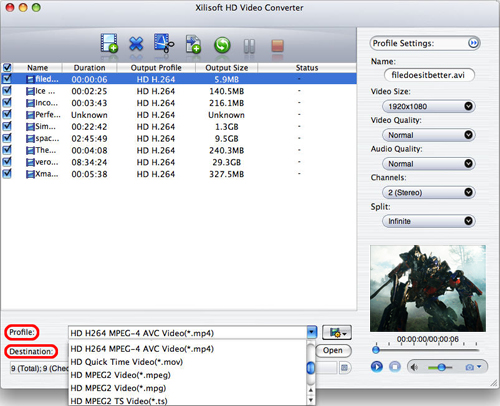
Choose the file, click "Profile" drop-down button to choose the format you need, then click "Browse" button to choose destination folder for saving output files.
If you want to do more with your video and audio files, please refer to the "More usage skills".
Step 4: Convert
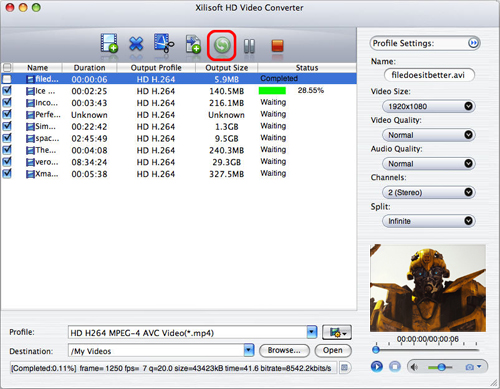
After choosing the format, you just need to click "Convert" button on the toolbar to start the task.
Additionally, the software provides you with more features to perfect your video. Click the feature titles below for more details on the operation.
More usage skills
1. Add multiple profiles for the same video file

2. Get exact video file size with bitrate calculator

3. Adjust general and advanced profile settings


