
Xilisoft Mobile Video Converter Tutorial
How to convert video files using this video converter? The following will show you a step by step guide to complete the conversion task.
Step 1: Add File
Click "Add File" button on the toolbar or "File > Add File" to load files.
Step 2: Choose output format
Choose the file, click "Profile" drop-down button to choose the format you need, then click "Browse" button to choose destination folder for saving output files.
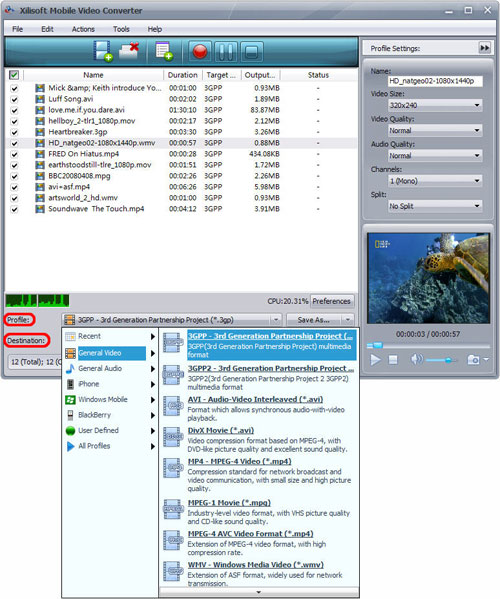
Tip1: Click "Snapshot" button on main interface to take a snapshot when playing the video and save it as BMP.
Tip2: If you want to do more with your video and audio files, please refer to the "More usage skills".
Step 3: Convert
After choosing the format, you only need to click "Convert" button on the toolbar to complete the task.

Ok, the above is the easiest function for your conversion. We provide you more abundant skills below!
More usage skills
1. Add profiles for the same video file

2. Customize output size with bitrate calculator

3. Divers parameters for setting


