
How to convert DVD to QuickTime on Mac
Xilisoft DVD to Video for Mac is an easy-to-use DVD converting program for Mac users to convert and convert DVD to QuickTime file format. Except converting DVD to QuickTime, it also can convert DVD to almost all video and audio formats including AVI, MPEG, WMV, DivX, MP4, H.264/AVC, RM, 3GP, MP3, WAV, WMA, RA, M4A, AAC, AC3, OGG, AU, etc.
Step-by-step guide to convert DVD to QuickTime on Mac OS X
Step 1: Download and install the Mac DVD to Video.
Step 2: Load DVD.
Insert DVD into your DVD-ROM. Click "Add" button to load your DVD. This DVD Converter for Mac does support DVD folder or DVD image files. Just Click "Add" button and press DVD folder or DVD image (IFO file).
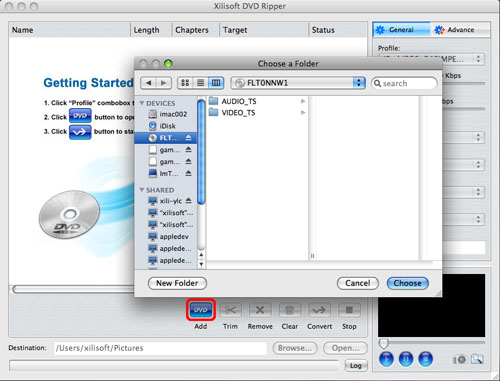
Step 3: Set output format.
Choose titles or chapters you want to convert, and then select a profile from the "Profile" drop-down list in the "General" tab as your output format. Here we choose MOV - QuickTime (*.mov).
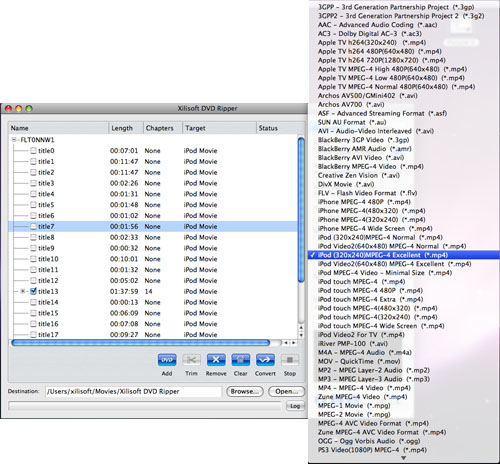
After choosing a profile, you can adjust parameter values in the "Advance" tab, such as "Bit Rate", "Sample Rate", "Duration", "Start time", etc.

Tips: How to trim the video to convert a certain segment?
1. Choose the title or chapter of the DVD that contains the segment you want, and click the "Trim" button to open the "Video Trim" window.
2. In the "Video Trim" window, click the "Play" button to preview the video, then you can specify the very start position by clicking the "Set Begin" button and end position by clicking the "Set End" button. And if you do not satisfy with the position you set, just click the "Reset" to set the position again.
3. Click the "OK" button to apply your setting, and then a scissors icon would add to the title or chapter you choose. You can press the "Convert" button to start the conversion.

Step 4: Set output file destination and file name

Step 5: Start to convert DVD to QuickTime files.

Ok, done.
If you're interested in this Mac DVD Converter program, please visit: Xilisoft DVD to Video for Mac.


