How to convert YouTube to iPhone Ringtone and transfer to iPhone?
Download YouTube music with some online downloading tool, create ringtones out of them with some ringtone maker, and then transfer the ringtones into your iPhone with help of some iPhone manager, it sounds a little complicated, and maybe expensive since it seems that you need to use about three kinds of software to complete this task. However, with Xilisoft iPhone Magic Platinum, you can finish all of them with just a few clicks and do not need any other software anymore.
Want to know more? The following article will show you How to convert YouTube to iPhone Ringtone step by step.
Download the software from Xilisoft iPhone Magic Platinum, install and run it.
Step1. Download YouTube videos that you want to make into ringtone
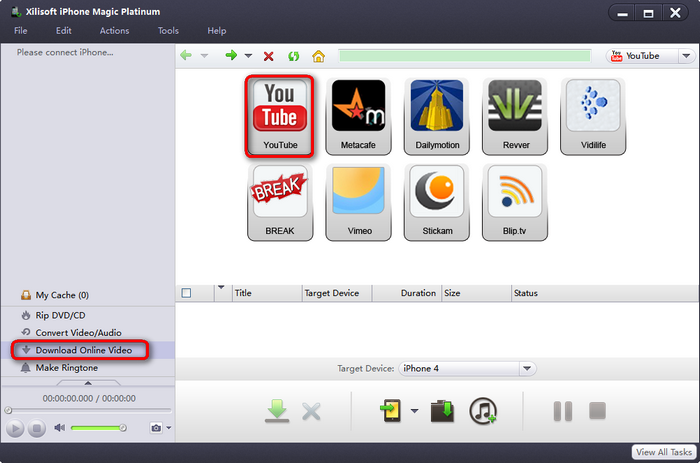
Click “Download Online Video” from the left panel, then its interface appeared in the right window. Choose “YouTube” from other top online video websites.
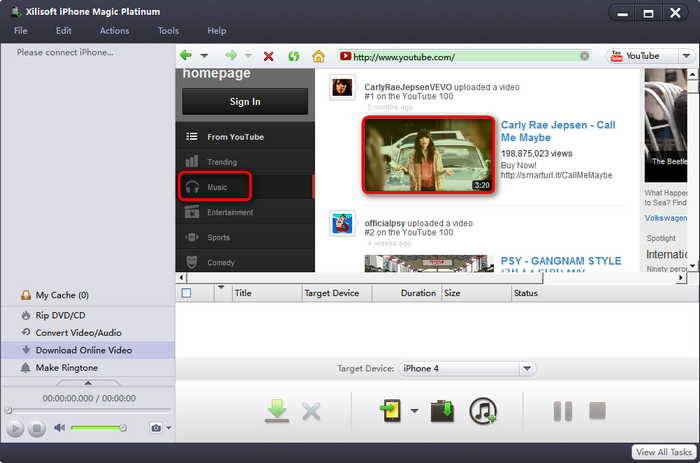
Now you can browse youtube.com via the built-in browser. Click “Music” from the category, and choose the music you like by clicking the thumbnail; or type the keywords to find the video you like.
When the download dialog pops up, just click the green downloading arrow, then the task will begin and you can see the downloading progress and the details of this video on the bottom. (As it prompts, sometimes you may need to wait the Ads finished to start video downloading)
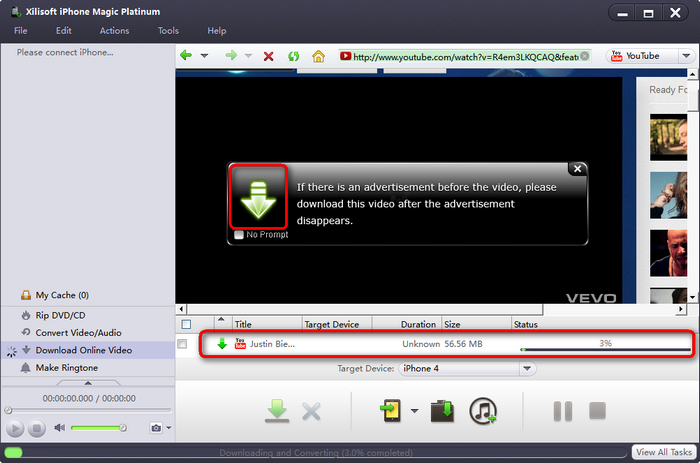
Before the downloading task is finished, you can watch the video or find some other music to download.
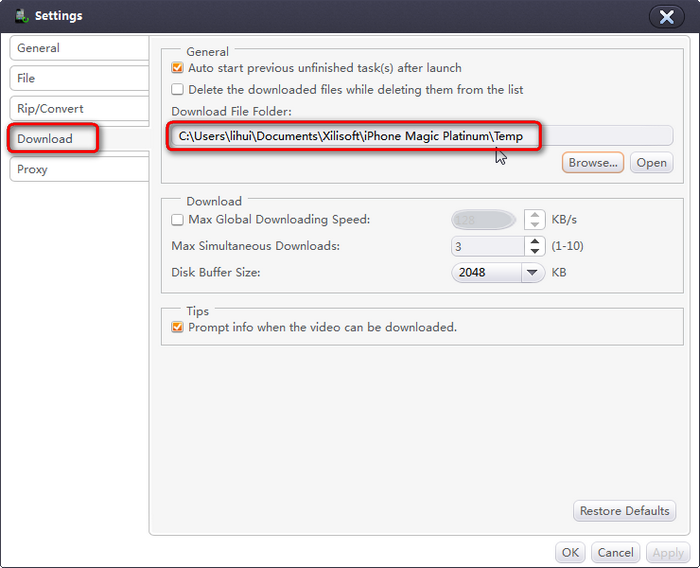
And while the downloading finished, you can find the file(s) on computer through this way: Click “Settings”-> “Tools” menu, and choose “Download” tab, you will see the “Download File Folder”. Just click "open" to check the file(s).
Step2. Make the downloaded YouTube video(s) into iPhone ringtone
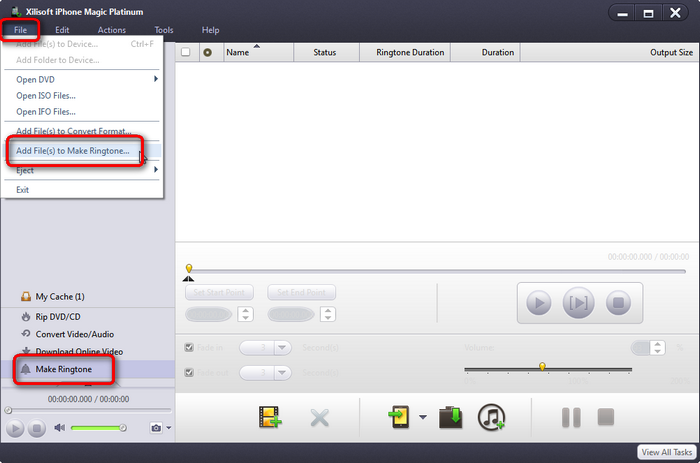
Click “Make Ringtones” in the left panel, and choose “Add File(s) to Make Ringtone” from “File” in the toolbar.
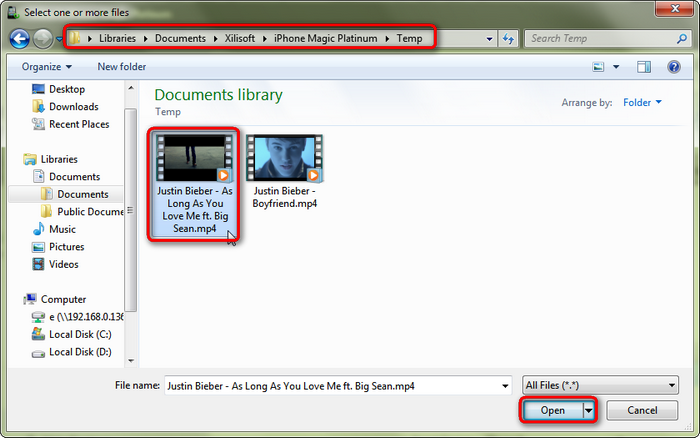
Choose the downloaded music file from your computer and open it.
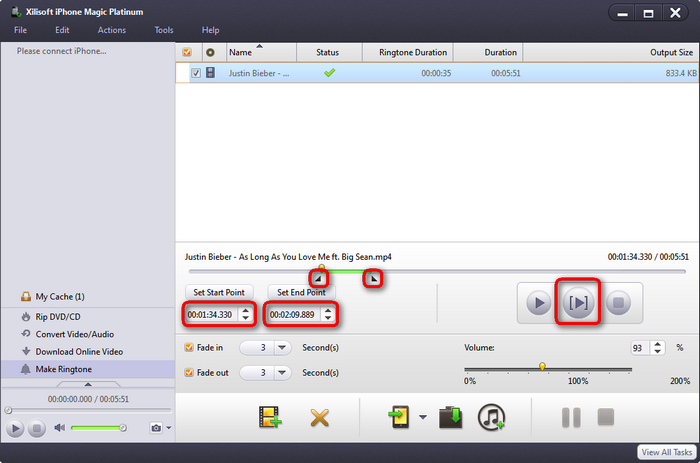
Then the downloaded music shows up in the right panel, choose it, and the progress bar’s color turns green which means it could be edited now.
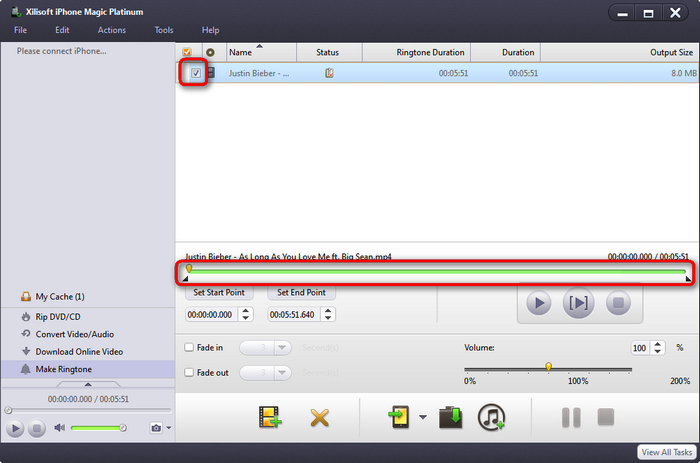
Set start point and end point in the time setting boxes or by dragging and dropping the little black triangles. Mark fade in/out button to give the ringtone some special effect, and click the second play button to have a listening test.
Step 3. Make YouTube to iPhone ringtone and transfer to iPhone
Connect your iPhone and click “Copy File(s) to Device” button to transfer the created ringtone to your iPhone, and the “Status” will show you the transferringprogress.
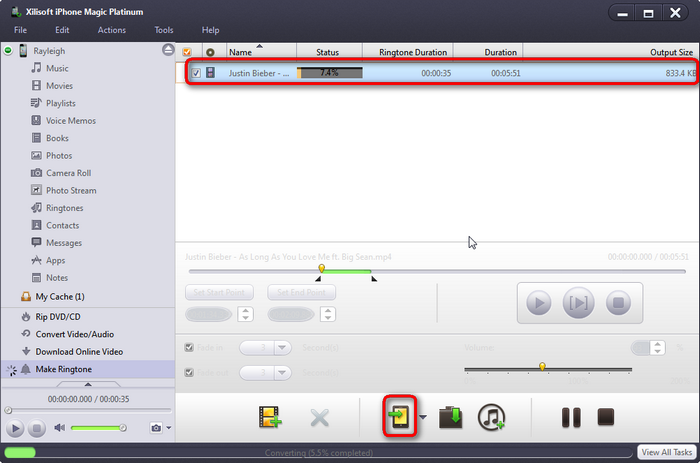
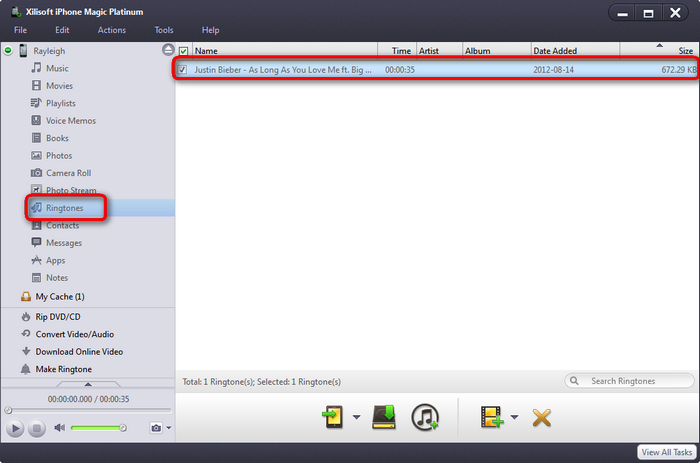
Now click “Ringtones” in the left panel, you will find that the ringtone has been transferred into your iPhone successfully.